

Subscription & billing settings
Access and manage your Workable subscription on this screen.
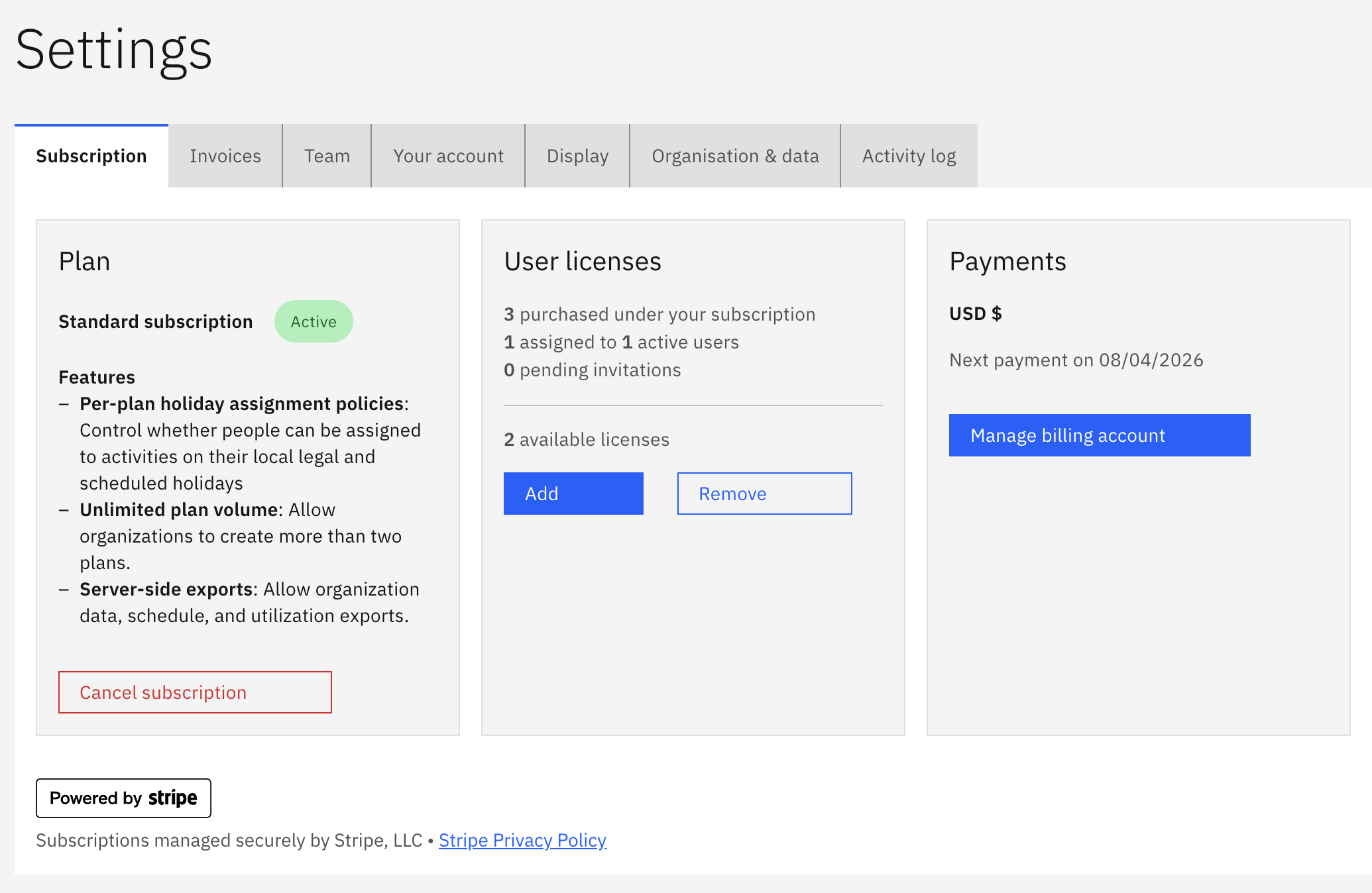
This section shows the current status of your subscription: Trial, Active, or Cancelled / Cancellation in effect.
For active subscriptions it shows the additional features unlocked in the subscription plan, plus the option of activating or cancelling a subscription plan here depending on the status of your current subscription.
Manage user licenses
Section titled “Manage user licenses”You must have sufficient user license subscriptions for each organisation user (team members) that logs into Workable. This excludes people added on the Resources → People screen for scheduling purposes.
This section displays your current license count and any discrepancies between actual users and license subscriptions. You can add or remove licenses here.
Access to features may be blocked if you do not have sufficient user licenses for the number of team members in your account.
Available plans
Section titled “Available plans”If you are on a free trial and want to move to a subscription, or have cancelled and want to re-subscribe, the Available Plans section is displayed to allow you to Subscribe to a plan.
Manage your subscription
Section titled “Manage your subscription”To update your payment method or cancel your subscription or trial, click Manage your subscription. This opens the Stripe Customer Portal.
If you decide to cancel, Workable uses a cancel-at-period-end policy. That means your access continues until the current billing period ends.
- Go to Manage your subscription and select Cancel plan.
- Your subscription status changes to Cancellation submitted.
- You retain full access to premium features until the end of your current billing cycle.
- On the displayed end date, the subscription officially ends and the organisation reverts to the free tier.