

Add work streams
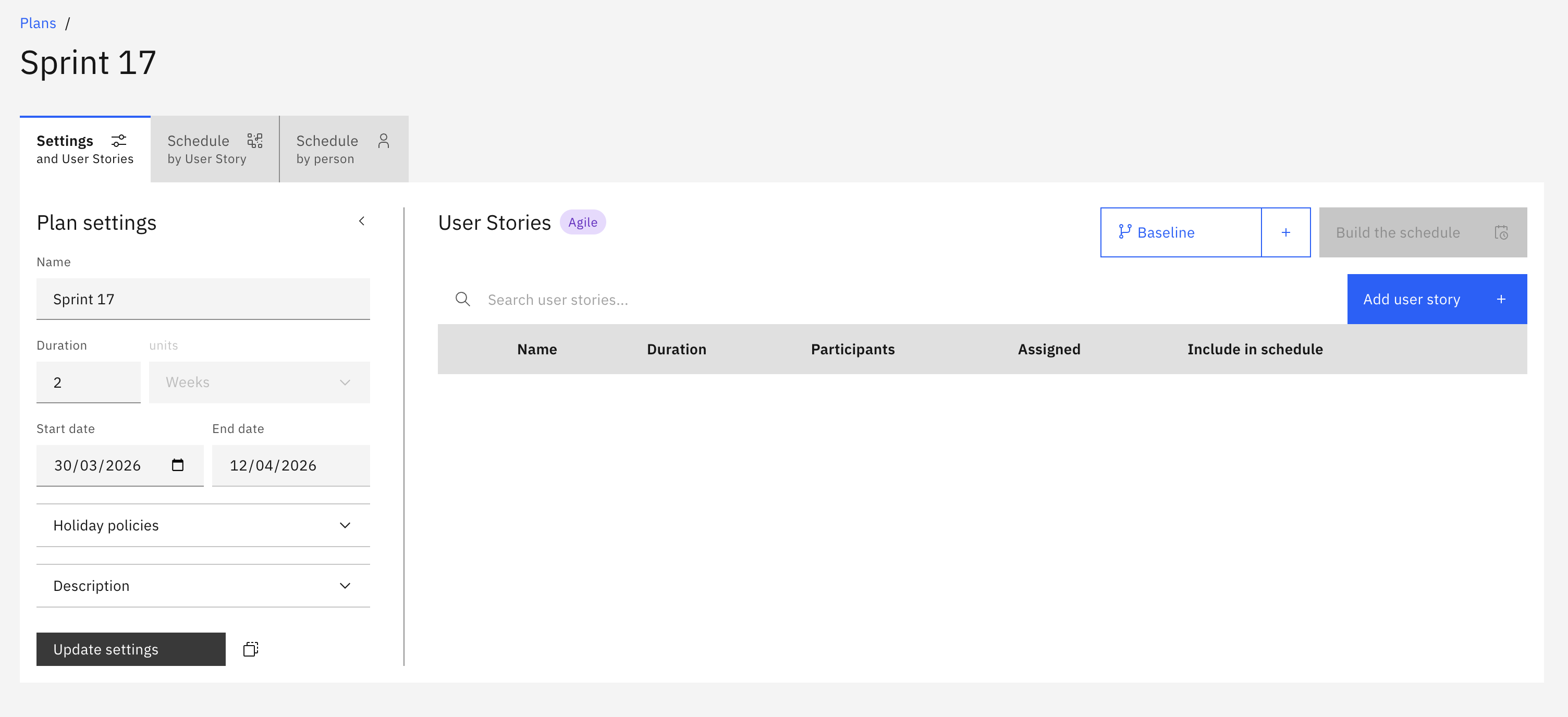
Work streams are the items Workable needs to place on the timeline, with matching resources, when generating a schedule. When you create and save a new plan the right hand panel is empty. This is where you add the plan’s work streams.
Depending on the plan Format set when the plan was created, they may be called Projects, User stories, Bets, or Tasks.
In this example, because the plan format is Agile, the work streams are User stories:
Add a work stream to plan
Section titled “Add a work stream to plan”In the right hand panel of a plan, click the Add [work stream type] button i.e. Add project, Add user story, Add bet, or Add task.
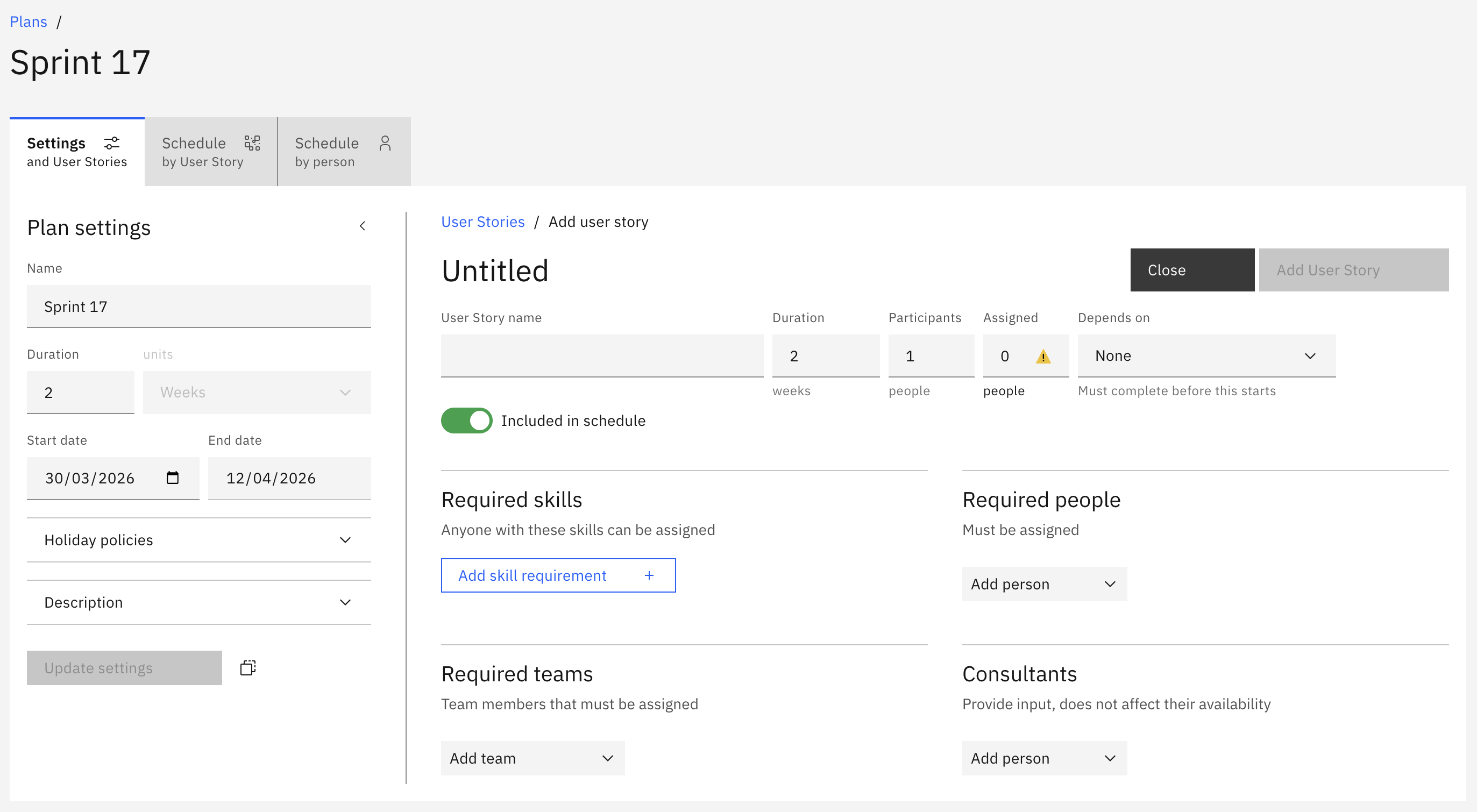
The work stream configuration screen is the same, regardless of the work stream type:
General work stream settings
Section titled “General work stream settings”At the top of the configuration screen are the general settings for the work stream:
For a user story, this might be similar to: “As a user, I want a password reset option, so that I can update my password without contacting Support”. For a project, this might be “Roof repair” or “Pack up office for a move”.
Duration
Section titled “Duration”The length of time this work stream will run. It may be less than the overall plan duration, but it cannot be longer than the plan duration.
Participants
Section titled “Participants”The total number of people this work stream requires. If the total assigned skills or required people does not equal this, the work stream cannot be scheduled and a warning will show.
Depends on
Section titled “Depends on”Use Depends on when a work stream cannot start until another work stream in the same plan has finished.
Choose the prerequisite work stream from the drop-down near the top of the editor. The list only includes other work streams in the current plan. Select None if this work stream does not need to wait for another one to finish.
When a dependency is set, Workable will not place this work stream on the timeline until the next scheduling period after the selected work stream ends. If the prerequisite work stream cannot be scheduled, the dependent work stream may also remain unscheduled.
Workable prevents circular dependencies, so you cannot create a loop where two work streams depend on each other directly or through a chain.
Included in schedule
Section titled “Included in schedule”When On, this work stream will be included when the plan schedule is generated. When a work stream’s configuration is draft or incomplete, turn this Off to avoid scheduling errors.
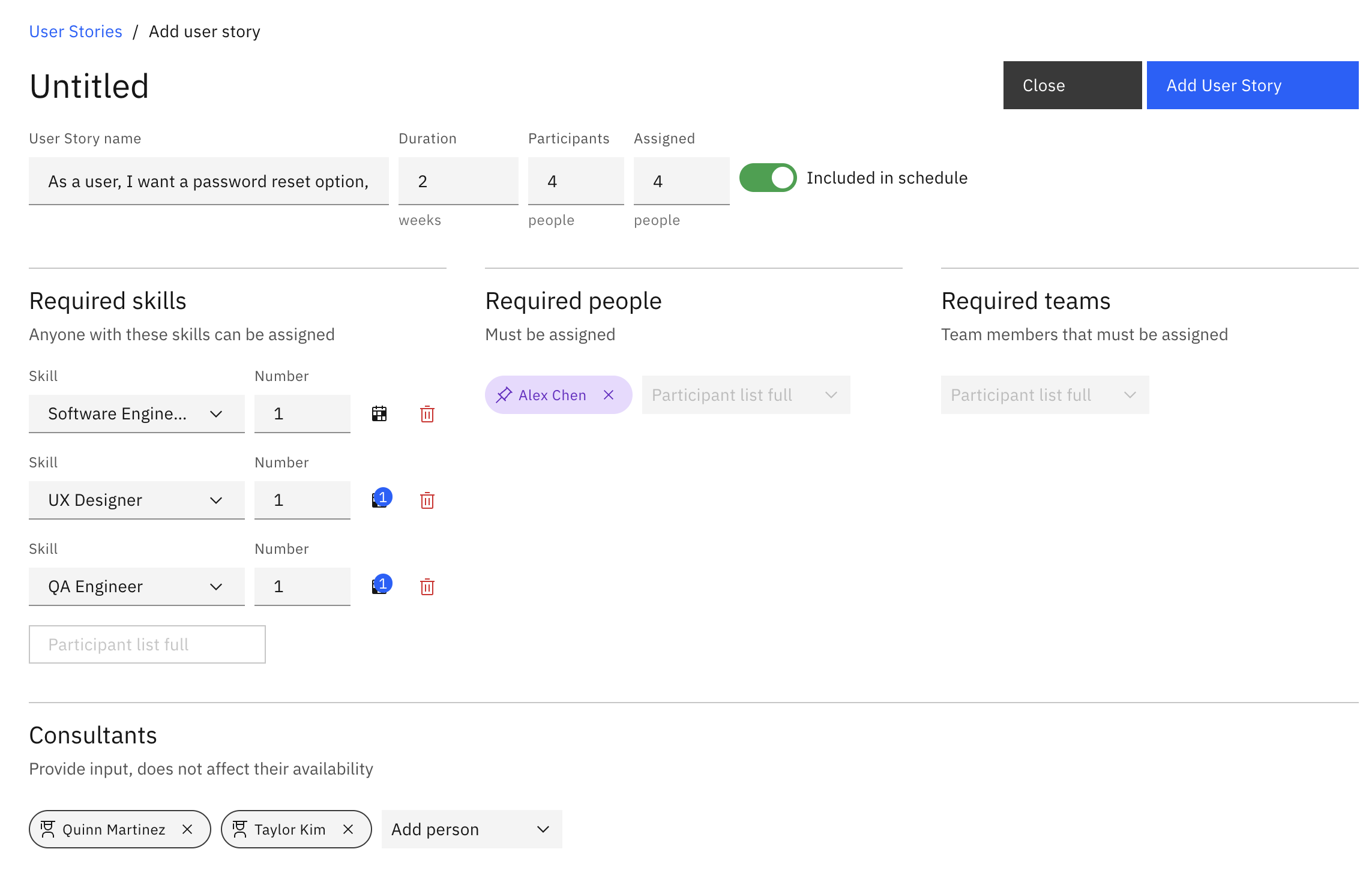
In this example, the user story requires four (4) people to be scheduled over a two (2) week sprint:

Required skills
Section titled “Required skills”Skill requirements tell Workable what kind of people each work stream needs. Click Add skill requirement, choose the skill from the list, and enter the number of people needed with that skill.
By default, the scheduler will attempt to generate a schedule that allocates a person with that skill to the work stream for the entire work stream duration. For refined control, click the Calendar button next to the skill to select specific periods that skill will be required.
For example, a user story might need:
- 1 × UX Designer only in the first week
- 1 × Software Engineer in both weeks
- 1 × QA Engineer only in the last week
Required people
Section titled “Required people”In general, selecting Required skills provides the most flexibility for Workable to generate an optimal schedule for the plan.
However you can allocate specific people to a work stream, regardless of their skills. This locks them to that work stream for its entire duration, and the scheduler must assign them to that work stream.
Examples of when to assign Required people:
- A subject matter expert is critical to a work stream’s success
- A specific person has unique knowledge or context needed throughout
- Client or stakeholder requirements specify certain team members
Add them using the drop-down:
Required teams
Section titled “Required teams”Required teams let you assign an entire team to a work stream. When you do this, every member of that team is assigned to the work stream as if you had required each person individually.
Examples of when to assign Required teams:
- A specific team owns a domain or area
- You want to keep established teams together
- Multiple team members with complementary skills need to work together
- Organisational structure dictates team ownership
Consultants
Section titled “Consultants”Consultants are people that provide input to a work stream. Adding a consultant to a work stream will not affect their availability to be assigned to other work streams by the scheduler, if required.
They are included only to help visualise the work stream people mix in the schedule, and do not count towards the work stream’s total participant number:
Save the work stream
Section titled “Save the work stream”When ready, click Add [work stream type] to commit the work stream to the plan e.g. Add user story.
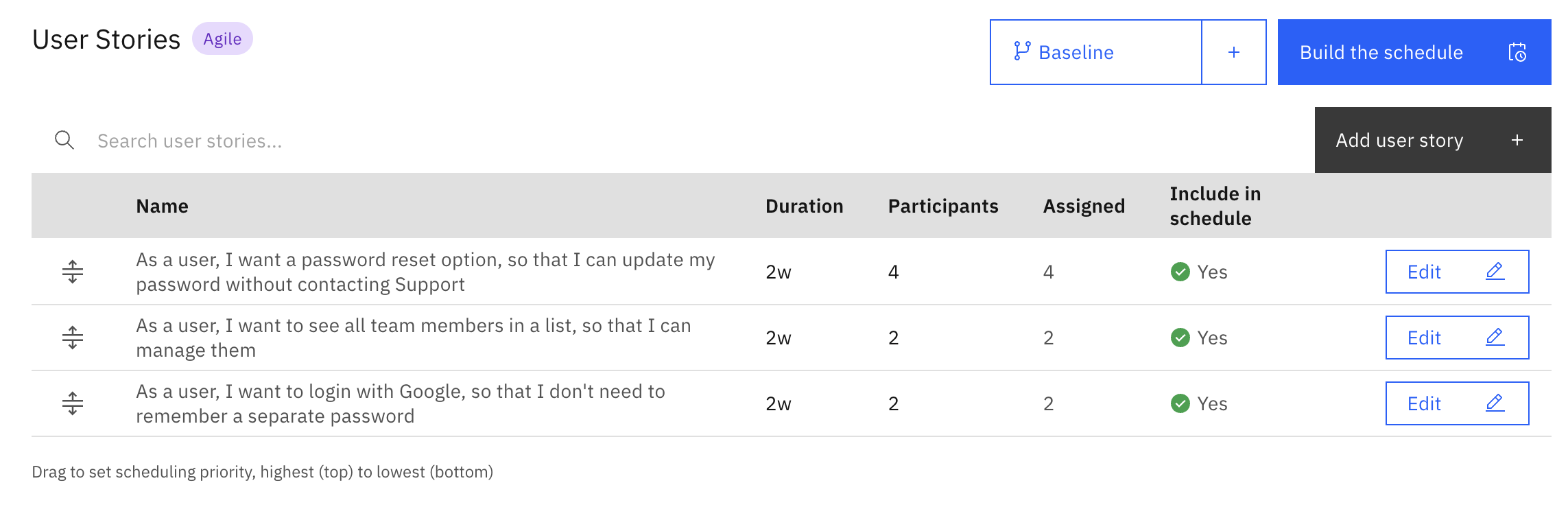
Continue adding more to the plan:
Work stream priority
Section titled “Work stream priority”The order of listed work streams in the plan determines their relative priority when assigning people in an optimal schedule. Drag the most important projects to the top using the handle on the left hand end of the work stream name, before building the schedule:
- High-priority projects are scheduled first
- Dependencies are always respected. A work stream that depends on another cannot start until the next scheduling period after the other one finishes, even if it appears higher in the list
- If resources are constrained, low-priority projects may not be scheduled
- The scheduler will attempt to fit as many projects as possible while respecting availability and other work stream constraints
Best practices
Section titled “Best practices”Use assignment controls sparingly to avoid bottlenecks and over-allocation. The more people and teams you lock in place, the less flexibility the scheduler has to find a workable schedule.
Assign teams when:
- You want to keep established teams together for continuity
- Organisational structure dictates team ownership
- It’s faster than pinning multiple individuals
Assign individuals when:
- Client requirements mandate specific people
- Domain expertise is irreplaceable
- Political or strategic reasons require certain assignments
Use consultants for:
- Stakeholders who need awareness but are not doing the work
- Subject matter experts who provide periodic input
- Managers or oversight roles
Use dependencies when:
- One work stream genuinely cannot begin until another has been completed
- You want the generated timeline to reflect a clear handoff between two pieces of work