

Organisation & Data
The Settings → Organisation & data screen displays organisation information, plus controls for managing your membership and organisation data.
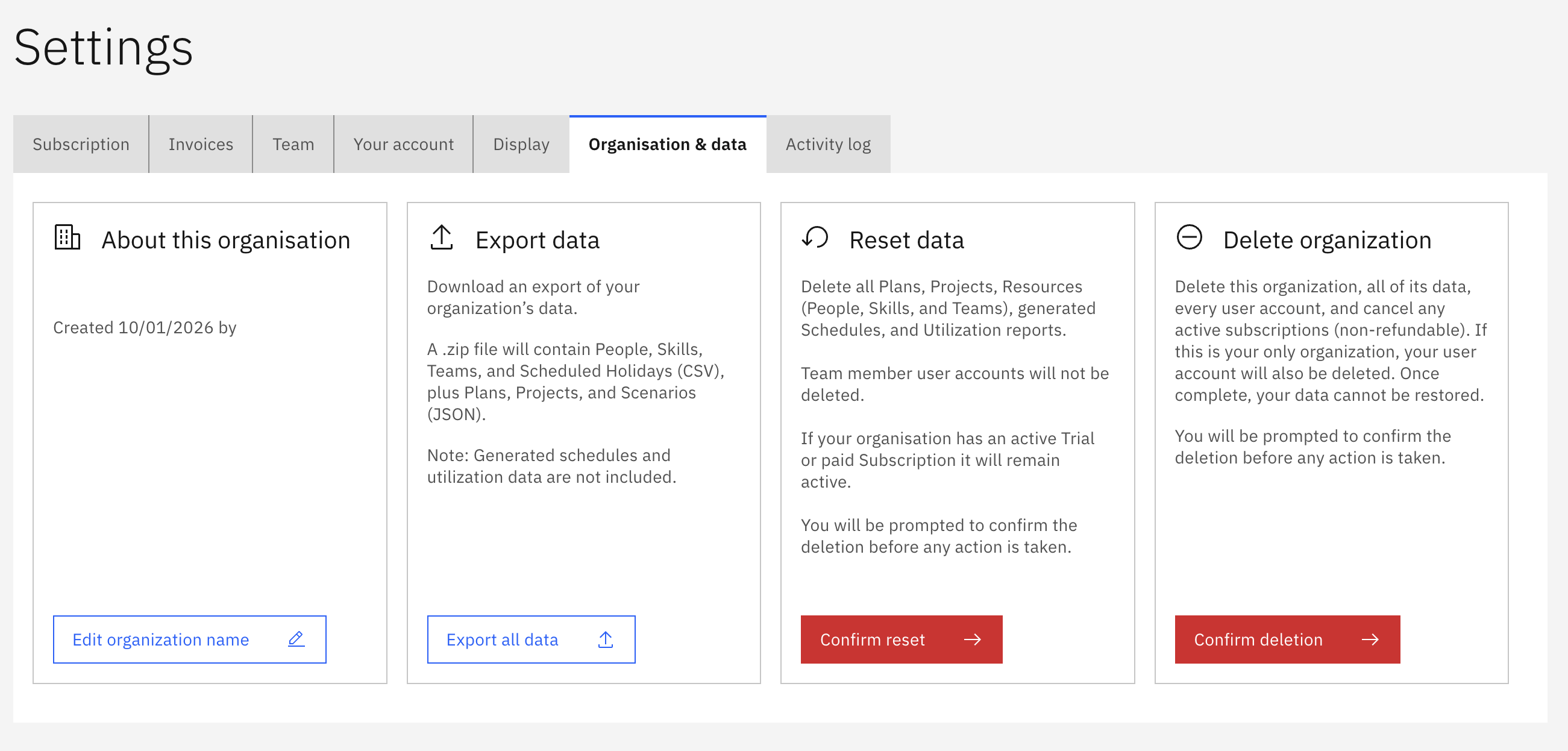
About this organisation
Section titled “About this organisation”This section shows the name of your organisation to all team members. Organisation Administrators can also update the organisation’s name.
Leaving an organisation
Section titled “Leaving an organisation”If you were invited to join the organisation and no longer want to be a member, click the Leave this organisation button that will displayed. You will be prompted to confirm the action.
If you are the only Organisation Administrator, you cannot leave until you promote another member to Organisation Administrator status. If you are also the current Billing Manager, you must transfer Billing Manager first to another Organisation Administrator.
Export Data
Section titled “Export Data”Export a backup of your organisation data, plans, and resources to JSON and CSV format files by clicking the Export all data button. When the export is ready, Workable downloads a Zip file to your device, containing all the files.
Calculated outputs such as a generated schedules are not included in the export files.
Reset data
Section titled “Reset data”Click the Confirm reset button to delete all plan and resources data from your account. Team members and organisation settings will not be affected. You will be prompted to confirm the deletion first.
Delete the organisation account
Section titled “Delete the organisation account”This is a destructive action that permanently and immediately removes the organisation and all its data.
Click Confirm deletion. You will be prompted to review the impact of this action before proceeding:
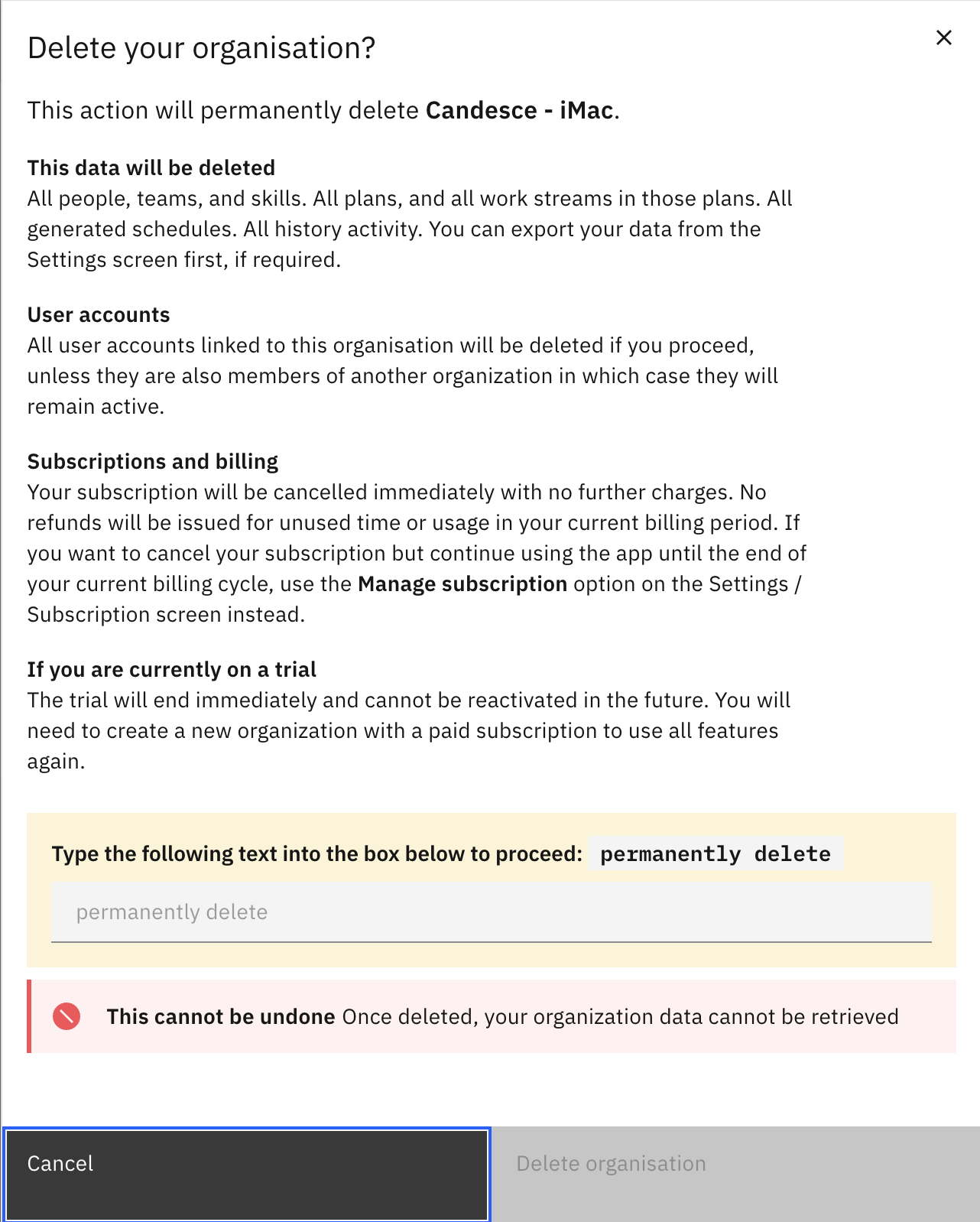
Carefully review the impact of this action on the popup. If you are ready to proceed, type the words permanently delete in the space provided, and click Delete Organization (the button will remain inactive until you type those words exactly).
Data deleted: All people, teams, and skills. All plans, and all work streams in those plans. All generated schedules. All activity log history. You can export your data first, if required.
User accounts: All user accounts linked to your organisation will be deleted if you proceed, unless they are also members of another organization - in which case they will remain active.
Subscriptions and billing: Your subscription will be cancelled immediately with no further charges. No refunds will be issued for unused time or usage in your current billing period. If you want to cancel your subscription but continue using the app until the end of your current billing cycle, use the Manage subscription option on the Settings / Subscription screen instead.
If you are currently on a trial: The trial will end immediately and cannot be reactivated in the future. You will need to create a new organization with a paid subscription to use all features again.