Create a plan
A Plan is the top-level container for the activities and people you want to schedule. It defines the planning window, the time unit you want to work in, people and skill requirements, and the settings the scheduler should use.
When ready, Workable to generate an optimal schedule for the work items in the plan, considering the people, skills, timeframes, and more in the plan.
View all plans
Section titled “View all plans”Select Plans in the top navigation bar. Plans are displayed in Card or Table view. Use the view buttons to switch between them. You can also filter plans by plan type:
Create a new plan
Section titled “Create a new plan”Click the New plan button. A new, untitled plan is opened to the Settings and projects tab.
- Set the short Plan name - e.g., “Sprint 17” or “Maintenance schedule”
- Set the Format - see Plan Formats below
- Set the Duration length and units. These are suggested by default based on the plan format, but can be modified. Individual work items in the plan (such as Projects, Bets, or User Stories) can have different durations within the overall plan timeframe.
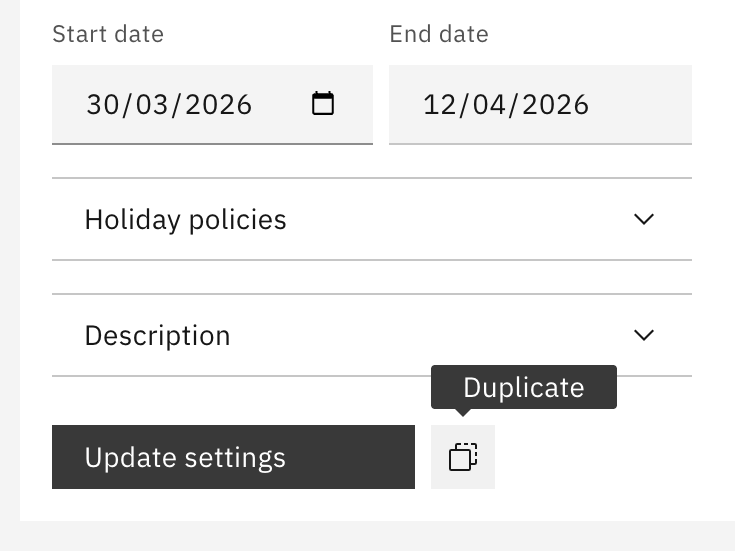
- Set the Start date. The End date will be automatically calculated. If the plan format is
Hourly planner, this will change to Start time, and the End date will be calculated based on the number of hours set in the Duration. - If the plan format is
Minutes planneran additional field to set the Interval (mins) will be displayed. This allows you to divide an overall plan into discrete time segments. For example, a plan might have an overall duration of360 minuteswith15 minuteintervals for scheduling tasks to people. - Expand the Holiday policies section to configure holiday-related scheduling options - see Holiday options
- Expand the Description section to add a longer description for the plan
When ready, click Save. The right-hand panel will update to show the list of work items in the current plan (empty for a new plan):
Plan formats
Section titled “Plan formats”There are four pre-built plan templates that make it easy to quickly configure a plan based on common working scenarios. Each template will label the work streams inside the plan differently:
| Plan type | Use | Work-streams in the plan |
|---|---|---|
Project Management | Traditional project scheduling with flexible timelines. Good for waterfall, general projects, or general task work. | Projects |
Agile | Sprint-based weekly planning for iterative development | User stories |
Shape Up | Cycles with fixed time boxes and variable scope | Bets |
Hourly planner | Plans with tasks scheduled to hourly time segments | Tasks |
Minute planner | Plans with tasks scheduled to custom minute interval segments | Tasks |
Regardless of the format selected, Workable uses a consistent scheduler that ensures the actual schedule is driven by the plan’s overall duration; holiday policies; and each work stream’s specific duration and people constraints.
Duplicate a plan
Section titled “Duplicate a plan”The Duplicate button at the bottom of the Plan settings panel creates a copy of the current plan as a new, untitled plan. This makes it easy and fast to set up new plans for common schedules, like Agile Sprints in software engineering: