

People
People records tell Workable who is available to schedule. Each person can include team membership, skills, and location data that the scheduler uses when building a plan.
Add a person manually
Section titled “Add a person manually”Manual addition works best for small teams and is the fastest way to understand how Workable is organised.
Go to Resources ➔ People, click Add Person, and add their details.
Email address
Section titled “Email address”We only use this to uniquely identify a person in your Resources list and schedule assignments. We do not use or share this email address, and do not send emails to this address.
Teams help you organise people for filtering and reporting, and for quickly adding groups of required people to a plan. They do not replace skills in scheduling decisions, but they make the workspace easier to understand.
Skills
Section titled “Skills”When you define requirements in a work stream in a Plan you can set the skills required and the number of people needed with those skills. The scheduler looks for people whose profiles include that skill and are available.
On a person’s profile select their skills. You can select more than one:
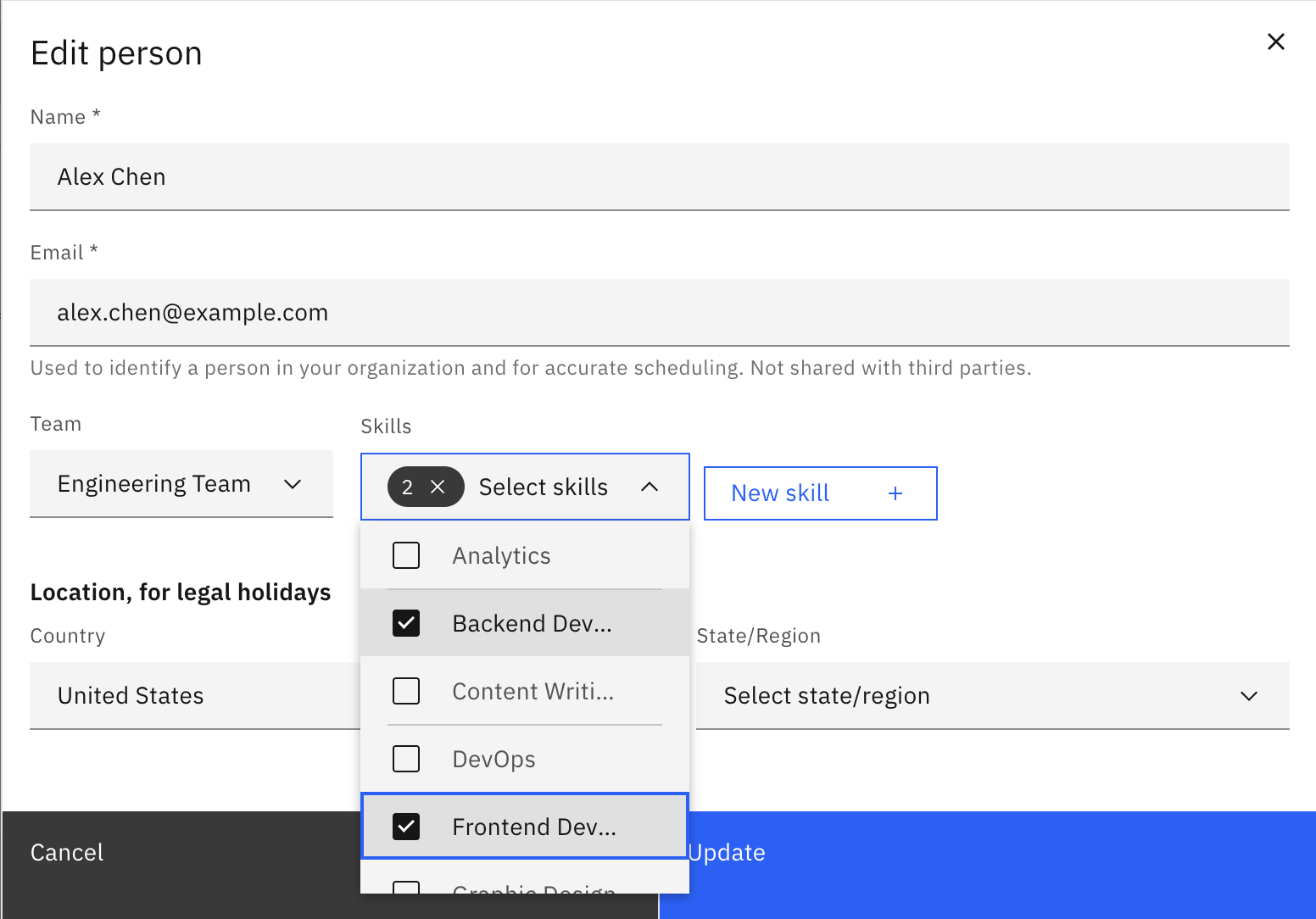
If you need to add a new skill when adding a person, click New skill next to the Skills drop-down, enter the name of the skill, and click the checkmark button.
Country and state
Section titled “Country and state”Add this information if you want Workable to account for national and regional legal holidays in that person’s working location.
- Set
Countryto consider national holidays - Set
Statewhen regional holidays should also be considered
Leave these blank to ignore holidays in all cases for this person. See [Holiday scheduling] for more information.
Update or remove a person
Section titled “Update or remove a person”Go to Resources ➔ People screen and click the Edit or Delete button at the end of that person’s row.
Bulk import and update
Section titled “Bulk import and update”If you need to add or update a larger set of people, import from a Comma-Separated Value (.csv) file.
Download the template file
Section titled “Download the template file”To see the CSV file format for people, select Export to file on the Import/export people drop-down.
Prepare the CSV
Section titled “Prepare the CSV”Open the CSV file in in Excel, Google Sheets, Apple Numbers, or other spreadsheet or text editing app. Fill in data for the columns, making sure to leave the column headings as the first row:
- Required columns:
name,email - Optional columns:
team,country,state,skills(each skill must be separated by a;)
Example:
Upload the CSV
Section titled “Upload the CSV”When the file is ready, select Import from file on the Import/export people drop-down.
Issues importing?
Section titled “Issues importing?”Export people
Section titled “Export people”You can export the people data in your organisation to CSV file.
Select Export to file on the Import/export people drop-down.